

Poggy Chess
See it on our store: poggy.app/store/poggy-chess Chess and checkers tables in the world: sit down with a…
Price
$29.99
World-anchored scene text, character status labels, overhead /me and /do, and a persistent nearby-message box, all edited in a custom NUI with colours, sizes and saved presets.
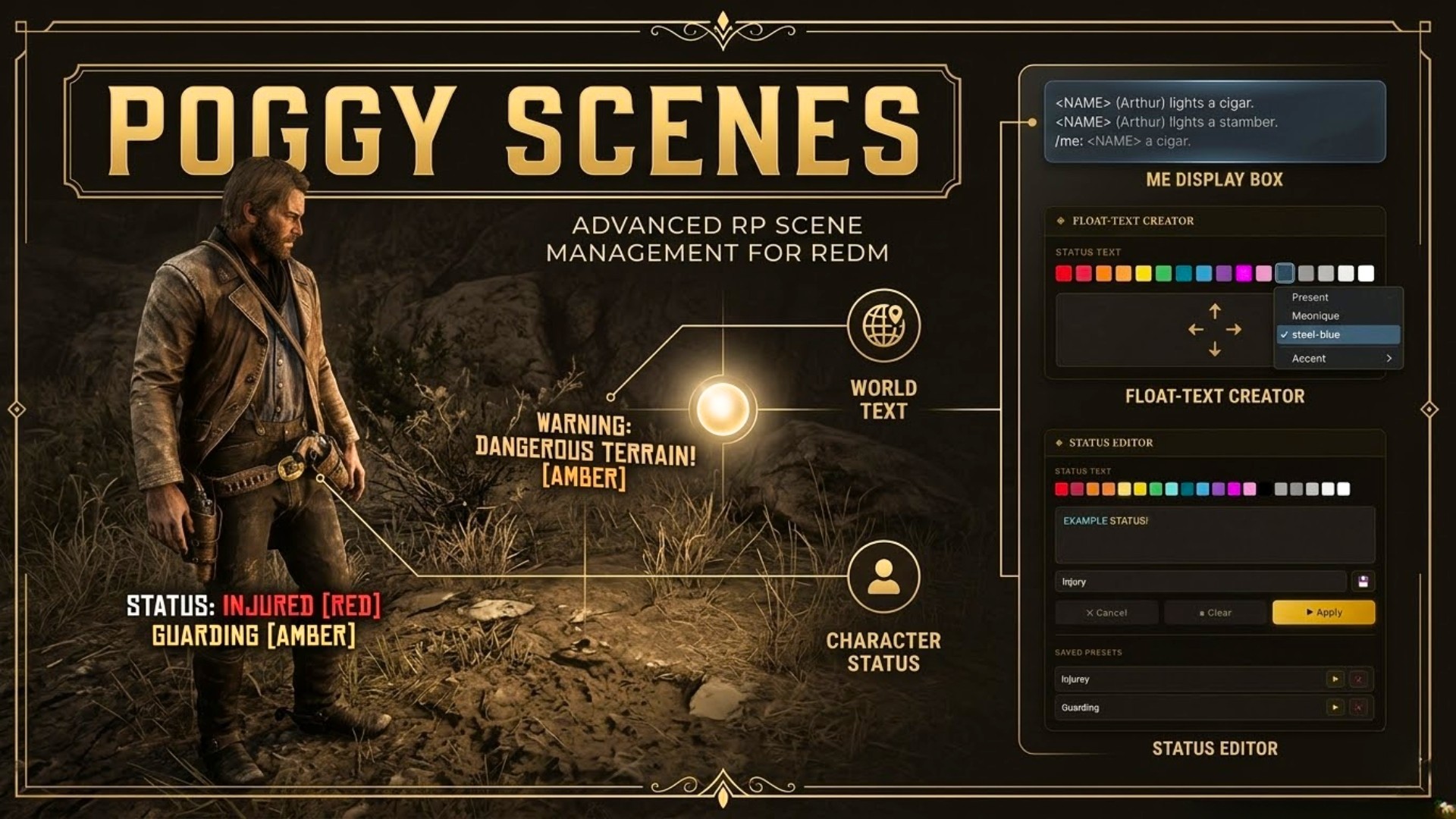
A feature-rich roleplay utility for RedM that brings together world-anchored scene text, character status labels, overhead /me action text, and a persistent nearby-message box — all wrapped in a fully custom NUI editor with colour formatting, font size control, and saved presets.
Video Preview - https://www.youtube.com/watch?v=LIFh2ltNjrA
Place floating lines of richly formatted text at any position in the world. Scenes are server-persistent — they survive reconnects and resource restarts and are visible to every player within range.
The editor is a two-phase NUI panel:
<font size> + tilde colour codes) and displays exactly as authored in the game engine.Attach a persistent coloured status tag above your character — injury states, moods, RP flags, anything you like. Visible to all nearby players at all times.
/status alone opens the full NUI editor with colour formatting./status some text is a quick-fire shortcut with no UI./cstatus clears your status./me and /do messages float on the sending player’s body with a subtle dark background pill. Multiple messages stack upward so nothing overlaps. Each entry auto-expires after a configurable duration (default 10 seconds).
A semi-transparent message box at the top-centre of the screen collects nearby /me messages so you never miss a emote even when the overhead text has faded.
/mebox move lets you drag the box anywhere on screen; position is saved permanently./mebox small|normal|large.Six built-in colour schemes for the Scene and Status editor panels:
| Theme | Look |
|---|---|
amber-frontier | Old West sepia gold (default) |
steel-blue | Modern dark navy & steel blue |
ivory-noir | Pure black & white |
lavender-dusk | Soft pastel lavender |
crimson-dusk | Deep dramatic red |
emerald-ridge | Earthy forest green |
Set with a single line in config.lua — no restart required, applies on character load.
| Command | Description |
|---|---|
/scene | Open the Scene Editor |
/me <text> | In-character action (overhead + ME box) |
/do <text> | OOC description (overhead) |
/status [text] | Set/edit status label |
/cstatus | Clear status label |
/id | Show your server ID above your character |
/cash | Show your cash above your character |
/mebox auto|persist|off|move|small|normal|large | Control the ME display box |
All command names are fully configurable.
Everything is controlled from a single config.lua:
/scene to specific jobs)/scene opens the editor, /me and /do float on the character, /status and /cstatus set and clear a status label, /id and /cash show your ID or cash overhead, and /mebox controls the message box. Every command name is configurable.
Yes. Scenes are server-persistent, survive reconnects and resource restarts, and are visible to every player within the configured range.
A semi-transparent box at the top of the screen that collects nearby /me messages so nothing is missed once the overhead text fades. It has auto and persist modes, three widths, can be dragged anywhere, and colour-codes names per job.
Six editor themes ship in the box, from the default amber-frontier sepia to steel-blue, ivory-noir, lavender-dusk, crimson-dusk and emerald-ridge. Set it with one line in config.lua.
Poggy Scenes works with VORP Core, RSG Core and QBCore RedM through poggy_core, which detects the framework at runtime and has a proven adapter for each, so there is one build and nothing to configure.
Instantly. Checkout runs through Tebex, which asks you to sign in with your Cfx.re account before items can be added to the basket, and the licence is tied to that Cfx.re account rather than a key to paste.
Yes. It runs on Poggy, a live RedM server, and updates are included with every licence. Support is in the Poggy Discord.
See it on our store: poggy.app/store/poggy-chess Chess and checkers tables in the world: sit down with a…

Let your law enforcement, marshals, and medical staff wear their rank. Poggy Badge gives qualified players a…

Poggy's Balloon The Hot Air Balloon System RedM Deserves Ever watched a player climb into a balloon basket…